






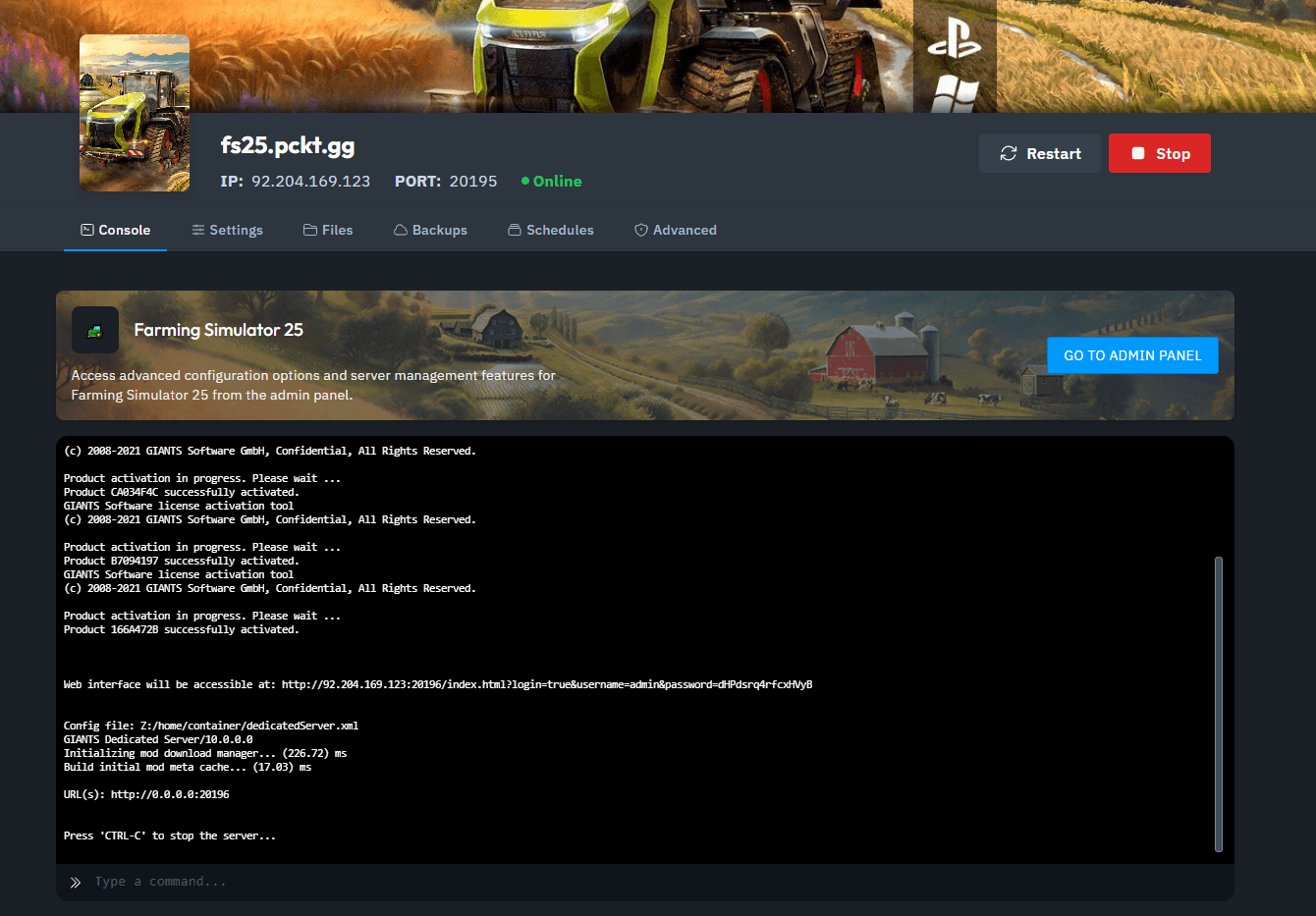
1. Access the Server Console: Open your xREALM Dashboard and locate the Server Console.
2. Open the Web Interface: Click the GO TO ADMIN PANEL button, which directs you to the Farming Simulator Web Interface.
3. Navigate to Savegames Tab: In the Web Interface, go to the Savegames tab.
.png&w=2048&q=75)
4. Locate Your Save Game: By default, your save game should be in the following directory on your computer: Users\User\Documents\My Games\FarmingSimulator2025.
.png&w=2048&q=75)
5. Compress the Save Game Folder: Open the folder containing your save game, select all files, right-click, and choose Send to > Compressed (zipped) Folder to create a .zip file.
.png&w=2048&q=75)
6. Select Slot and Upload: In the Web Interface, select the slot you want to upload the save game to. Click the Choose File button to open the file explorer and select your .zip file.
.png&w=2048&q=75)
7. Upload: Once your file is selected, click the green Upload button to finalize the process.
.png&w=2048&q=75)
.png&w=2048&q=75)
Your save game is now uploaded, and you can continue your farming adventures right where you left off! Enjoy playing on your Farming Simulator 25 server!